
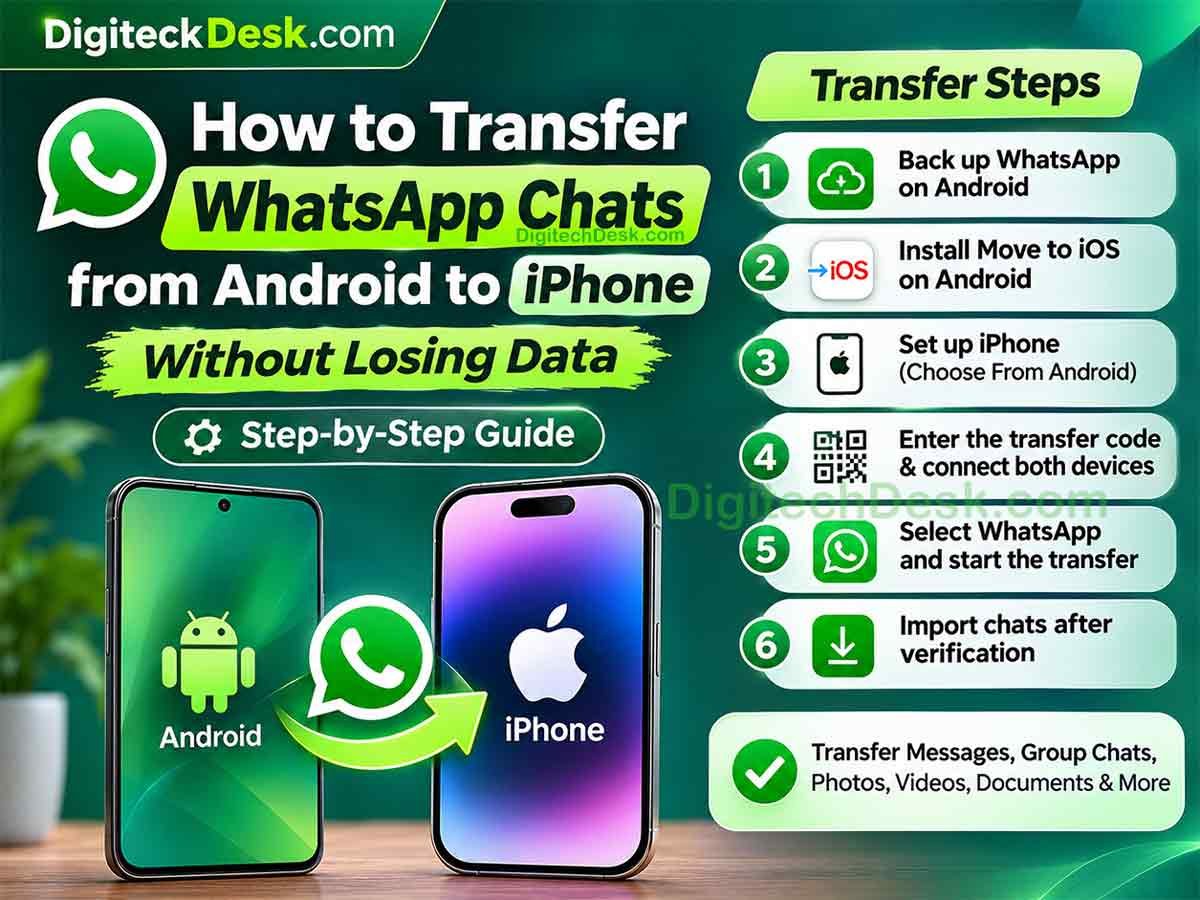
Are you switching from an Android smartphone to a new iPhone but worried about losing your WhatsApp messages, photos, videos, and important conversations?
Moving to a new smartphone can be exciting, but transferring WhatsApp chat history between Android and iPhone is not always straightforward.
Android devices generally use Google Drive for WhatsApp backups, whereas iPhones use iCloud. Because these are different platforms, you cannot simply restore your Android Google Drive backup directly on an iPhone.
Fortunately, WhatsApp supports an official method to transfer your chat history from Android to iPhone using Apple’s Move to iOS application.
In this detailed guide, you will learn how to transfer WhatsApp chats from Android to iPhone without losing your important conversations, including messages, group chats, photos, videos, and documents.
We will also explain the requirements, step-by-step process, common transfer problems, and what to do if your WhatsApp transfer gets stuck.
Can You Transfer WhatsApp Chats from Android to iPhone?
Yes! You can transfer WhatsApp chats from an Android device to an iPhone using Apple’s official Move to iOS application.
This method allows you to migrate your WhatsApp account information, profile photo, individual chats, group chats, chat history, media, and settings.
However, there are a few important requirements.
You need to perform the transfer while setting up a new iPhone or an iPhone that has been factory reset.
You also need to use the same WhatsApp phone number on both devices.
Important: You cannot directly restore a Google Drive WhatsApp backup onto an iPhone using iCloud. You need to use the official Android-to-iPhone migration process instead.
What You Need Before Transferring WhatsApp Chats
Before starting the transfer, make sure both smartphones meet the following requirements.
1. Android and iPhone Requirements
- Android smartphone running Android 5.0 or later.
- iPhone running iOS 15.5 or later.
- Latest version of WhatsApp installed on your Android device.
- Latest version of WhatsApp available for your iPhone.
2. Install the Move to iOS App
Move to iOS is Apple’s official application that helps Android users move their information to a new iPhone.
You can download it from Google Play Store.
Download: Move to iOS – Google Play Store
3. Use the Same WhatsApp Number
You must use the same phone number on your old Android device and new iPhone during the transfer.
If you are planning to change your WhatsApp number, change it on your old Android device first using WhatsApp’s Change Number feature. Then complete the migration using that updated number.
4. Keep Both Smartphones Charged
Make sure both devices have sufficient battery power.
Ideally, connect both smartphones to their chargers during the transfer.
5. Check iPhone Storage
Check how much storage your WhatsApp chats and media occupy on Android.
Your iPhone must have enough available storage for the content you want to transfer.
6. Keep Both Devices Connected
Follow the connection instructions displayed during the transfer.
Keep both devices close to each other and connected to power. Use the temporary Wi-Fi connection or hotspot connection requested during setup.
How to Transfer WhatsApp Chats from Android to iPhone – Step by Step
Now let’s understand the complete transfer process.
Follow these steps carefully to move your WhatsApp messages and media to your new iPhone.
Step 1: Back Up Your WhatsApp Chats on Android
Before starting, it is a good idea to create a fresh WhatsApp backup on your Android device.
This gives you an additional recovery option for your Android WhatsApp data.
How to create a WhatsApp backup:
- Open WhatsApp on your Android smartphone.
- Tap the three-dot menu in the top-right corner.
- Select Settings.
- Tap Chats.
- Select Chat backup.
- Choose your Google account if necessary.
- Tap Back up.
Wait until the backup process finishes.
Important: A Google Drive backup is not directly restorable on an iPhone. You are creating this backup as an additional precaution, not as the transfer method.
Also, do not uninstall WhatsApp or reset your Android device before confirming that your chats have successfully transferred.
WhatsApp Settings → Chats → Chat backup
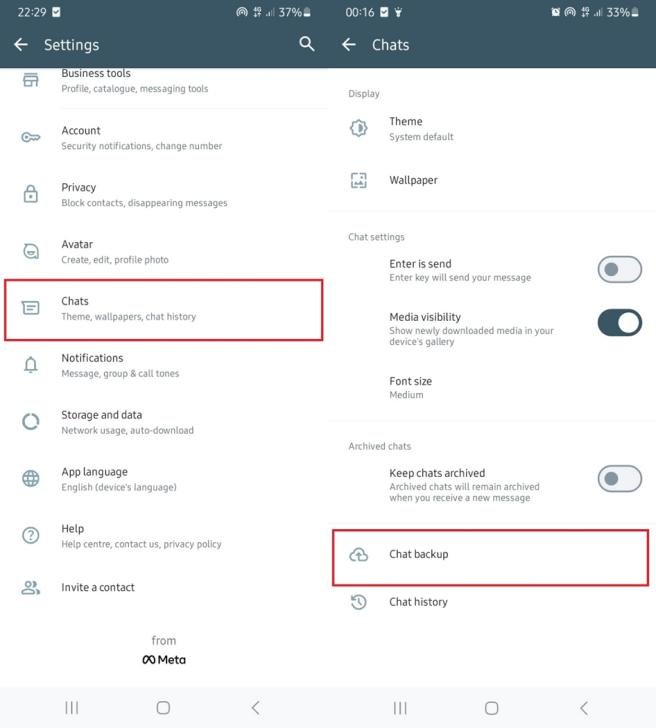
Suggested screenshot caption: Create a fresh WhatsApp backup on your Android smartphone before starting the migration.
Step 2: Download Move to iOS on Your Android Phone
Now install Apple’s Move to iOS application on your Android smartphone.
- Open Google Play Store.
- Search for Move to iOS.
- Confirm that the application is published by Apple.
- Tap Install.
- Open the application after installation.
- Tap Continue and accept the terms and conditions.
- Allow the requested permissions when prompted.
Keep the application ready. You will use it during your new iPhone setup.
Download link: https://play.google.com/store/apps/details?id=com.apple.movetoios

Move to iOS app in Google Play Store
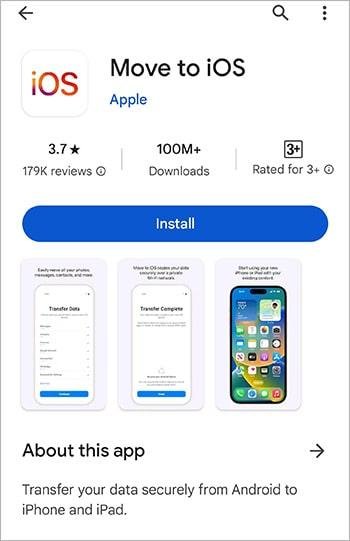
Suggested screenshot caption: Download Apple’s official Move to iOS application from Google Play Store.
Step 3: Start Setting Up Your New iPhone
Turn on your new iPhone.
Select your preferred language and country or region, then follow the initial setup instructions.
Continue until you reach the screen named Transfer Your Apps & Data or Transfer Your Apps & Data to iPhone.
Select the option:
From Android
Depending on your iOS version, you may see slightly different wording or additional transfer options.
Important: If you have already completed the iPhone setup, you cannot use this WhatsApp migration method without erasing the iPhone and starting again.
Back up important existing iPhone data before erasing it.
iPhone Transfer Your Apps & Data screen showing From Android
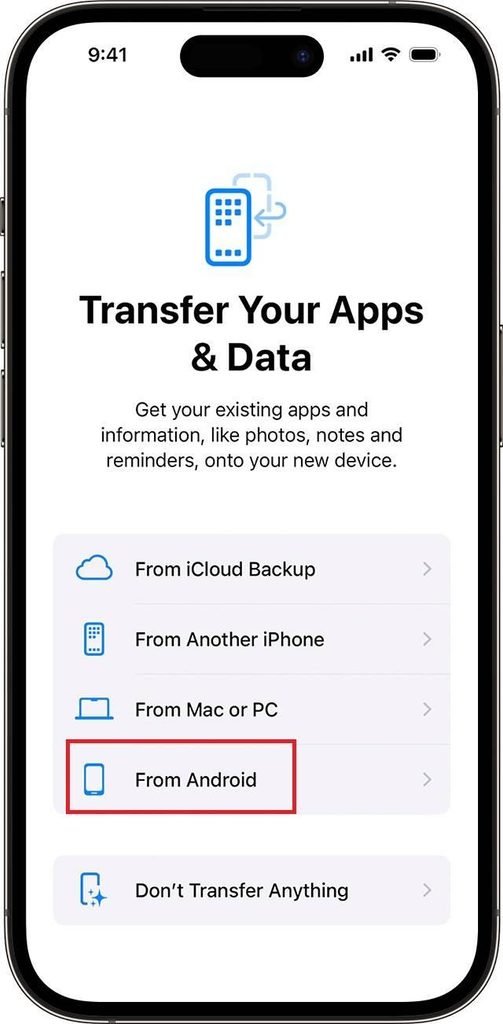
Suggested screenshot caption: Select From Android during the initial iPhone setup process.
Step 4: Connect Both Smartphones Using the Transfer Code
After selecting From Android, your iPhone will display a one-time transfer code.
Now take your Android smartphone.
- Open the Move to iOS application.
- Tap Continue.
- Accept the terms and conditions if prompted.
- Follow the permission instructions.
- Enter the one-time code displayed on your iPhone.
Your two devices will establish a connection for transferring information.
Follow any Wi-Fi connection instructions displayed on the screen.
iPhone displaying the transfer code
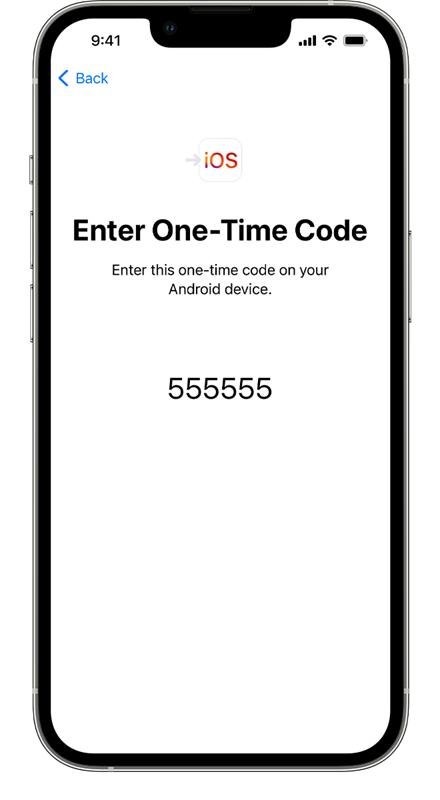
Suggested screenshot caption: Enter the one-time code displayed on your iPhone into the Move to iOS application on Android.
Step 5: Select WhatsApp in the Transfer Data Screen
Once both devices are connected, your Android phone will display the available data categories for transfer.
You may see options such as:
- Contacts
- Messages
- Photos
- Videos
Select WhatsApp from the available list.
Then tap Start on your Android smartphone.
WhatsApp will begin preparing your chat history and media for migration.
Depending on the amount of WhatsApp data stored on your device, this preparation may take some time.
Move to iOS Transfer Data screen showing WhatsApp selection
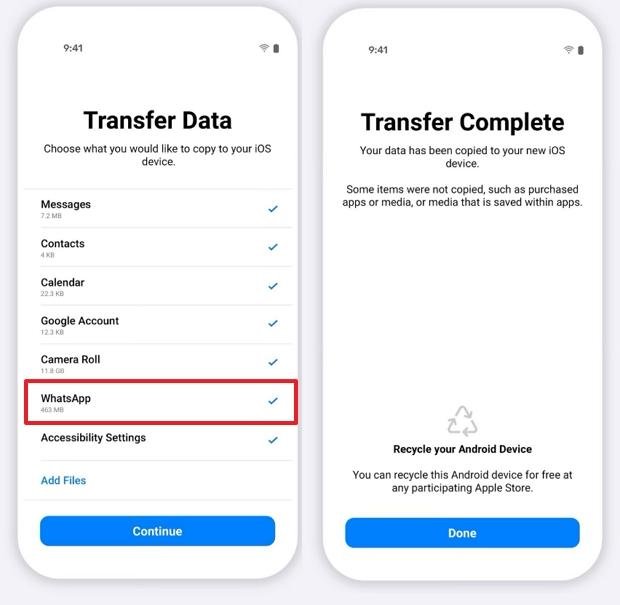
Suggested screenshot caption: Select WhatsApp from the available data categories to prepare your chat history for transfer.
Step 6: Prepare WhatsApp Data for Transfer
After selecting WhatsApp, the application will open the WhatsApp migration process.
Follow the instructions displayed on your Android device.
- Tap Start when prompted.
- Wait while WhatsApp prepares your messages and media.
- Allow the preparation process to finish.
- Tap Next to return to Move to iOS when prompted.
WhatsApp may sign you out of your old Android device after preparing the data.
Do not interrupt this process, Let complete all 3 steps.
Step 1: Preparing chats
Step 2: Scan the QR code to connect your phones
Step 3: Transferring chats
WhatsApp Preparing Chats or migration preparation screen
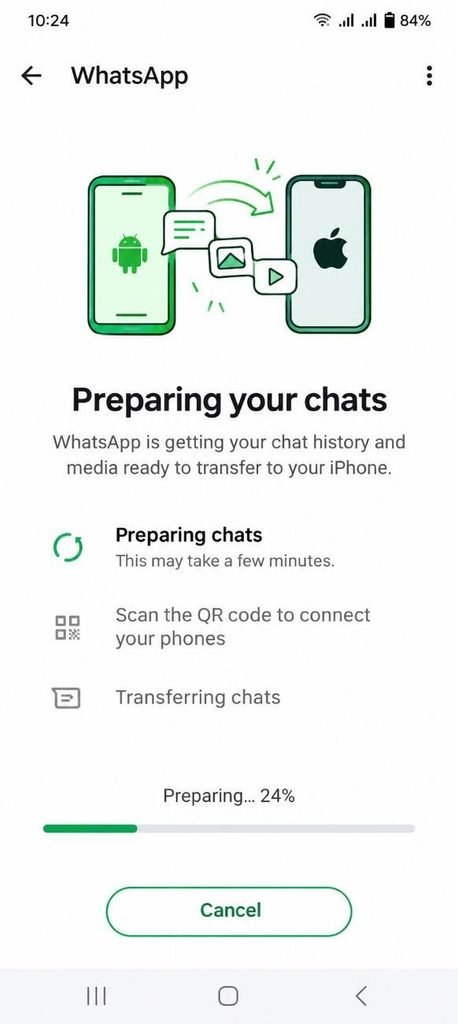
Suggested screenshot caption: WhatsApp prepares your chat history and media before transferring them to the iPhone.
Step 7: Complete the Transfer to Your iPhone
After WhatsApp has prepared the data, return to the Move to iOS application.
Tap Continue to begin transferring the selected information to your iPhone.
Now wait for the transfer process to finish.
During this stage:
- Keep both devices close to each other.
- Keep both devices connected to power.
- Do not switch to other applications on Android.
- Avoid answering calls or interrupting the transfer.
- Do not disconnect the devices.
The transfer duration depends on the amount of data stored on your Android device and the connection conditions.
Wait until the iPhone confirms that the transfer is complete.
Move to iOS transfer progress screen
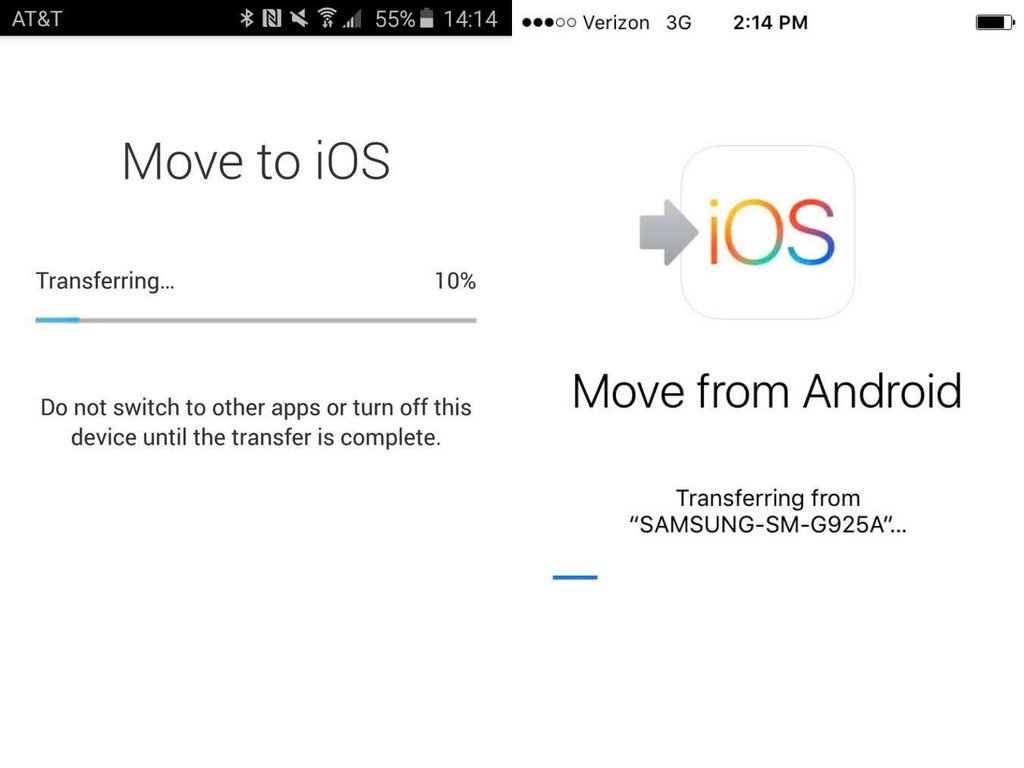
Suggested screenshot caption: Wait for the WhatsApp data migration to complete without interrupting the connection.
Step 8: Finish Setting Up Your iPhone
Once the transfer is complete, continue with the remaining iPhone setup instructions.
Complete the necessary settings, including your Apple Account sign-in, Face ID, passcode, and other preferences.
Wait until you reach the iPhone home screen.
Your WhatsApp migration data has now been transferred to your iPhone, but you still need to activate WhatsApp and import the transferred chats.
iPhone home screen after completing initial setup
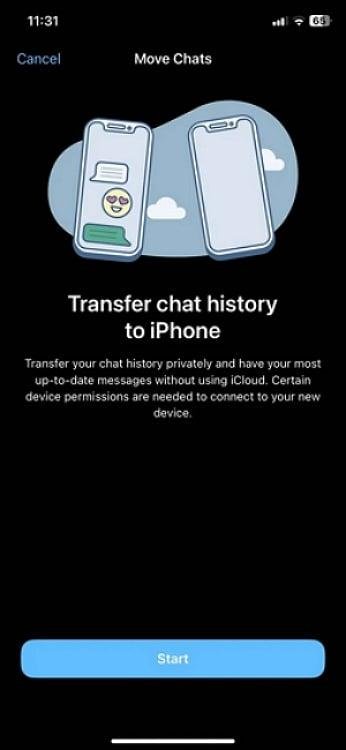
Suggested screenshot caption: Complete your iPhone setup before opening WhatsApp and importing the transferred chat history.
Step 9: Install WhatsApp on Your iPhone
Now install the latest version of WhatsApp from Apple’s App Store.
- Open the App Store.
- Search for WhatsApp Messenger.
- Confirm that the application is published by WhatsApp LLC.
- Tap Get or the download icon.
- Wait until the installation is complete.
- Open WhatsApp.
Download: WhatsApp Messenger – Apple App Store
WhatsApp Messenger in Apple App Store
Suggested screenshot caption: Install the official WhatsApp Messenger application on your new iPhone.
Step 10: Verify Your WhatsApp Phone Number
Open WhatsApp on your iPhone.
- Read and accept the WhatsApp terms.
- Enter the same phone number you used on your old Android device.
- Verify your number using the OTP received through SMS or the available verification method.
- Follow the instructions displayed on the screen.
Make sure you enter the correct number.
Using a different number without first changing it on your old device can prevent the migration from working correctly.
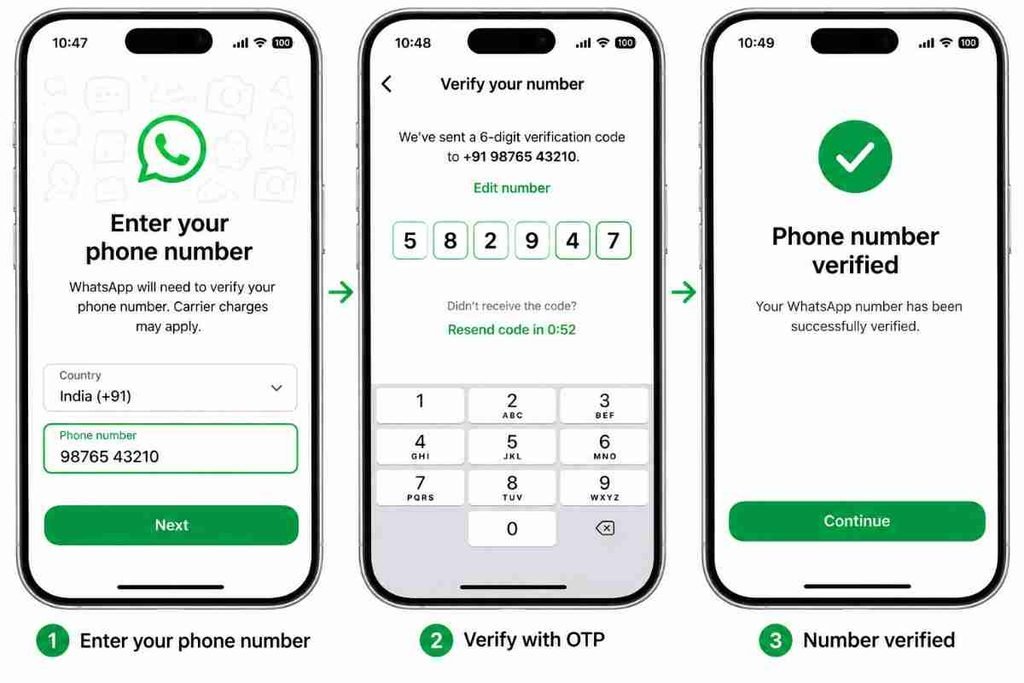
Step 11: Import Your WhatsApp Chat History
After verifying your phone number, WhatsApp should recognise the transferred chat data.
You may see a prompt to import or start transferring your chat history.
- Tap Start or the available import option.
- Wait for the chat import process to finish.
- Keep WhatsApp open during the process.
- Do not close the application or restart your iPhone unnecessarily.
- Follow the remaining instructions.
Once the import is complete, your WhatsApp conversations and supported media should appear on your iPhone.
WhatsApp Import Chat History screen on iPhone
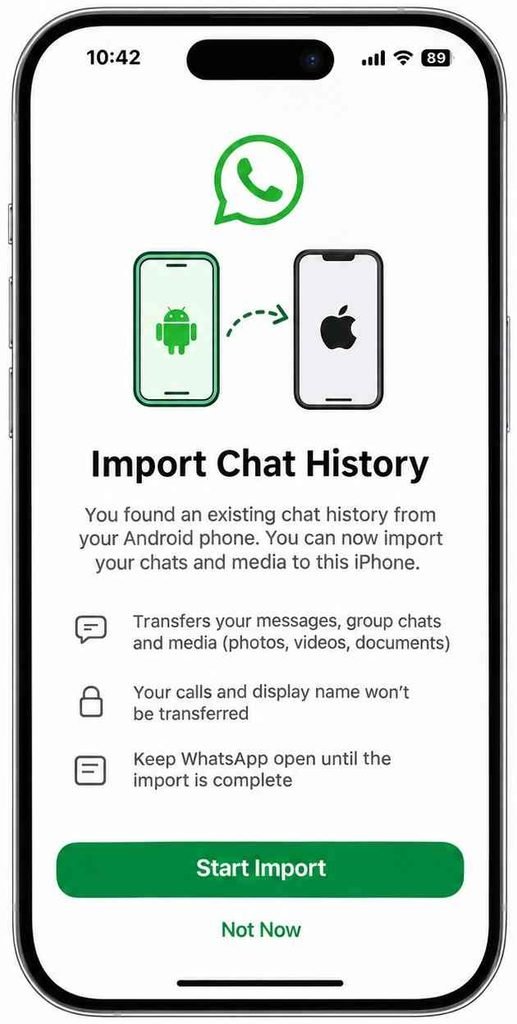
Suggested screenshot caption: Start importing the WhatsApp chat history transferred from your Android smartphone.
Step 12: Verify Your Chats, Photos and Videos
Congratulations! Your WhatsApp chat transfer should now be complete.
Before deleting anything from your old Android device, check whether your important data is available on your new iPhone.
Verify the following:
- Individual conversations.
- Group conversations.
- Old messages.
- Photos and videos.
- Documents and shared files.
- Voice messages.
- Important conversations and attachments.
Open a few older chats and check whether their media is accessible.
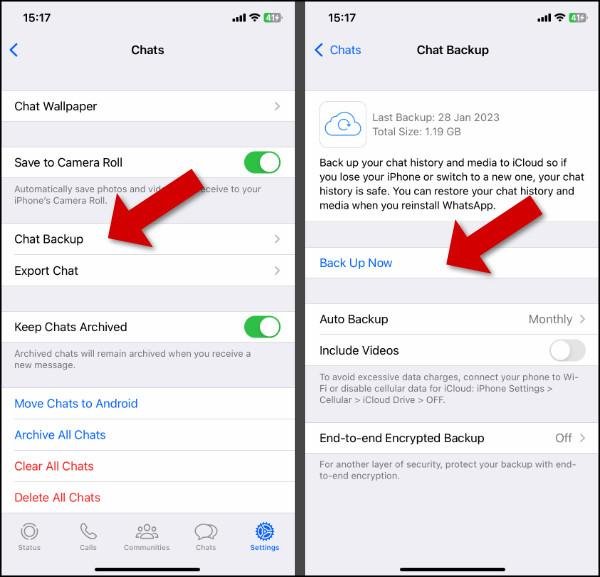
If everything looks correct, create a new WhatsApp backup on your iPhone.
How to create an iCloud WhatsApp backup:
- Open WhatsApp on your iPhone.
- Go to Settings.
- Select Chats.
- Tap Chat Backup.
- Select Back Up Now.
- Wait for the backup to finish.
Make sure you are signed in to your Apple Account and have sufficient iCloud storage.
WhatsApp Settings → Chats → Chat Backup on iPhone
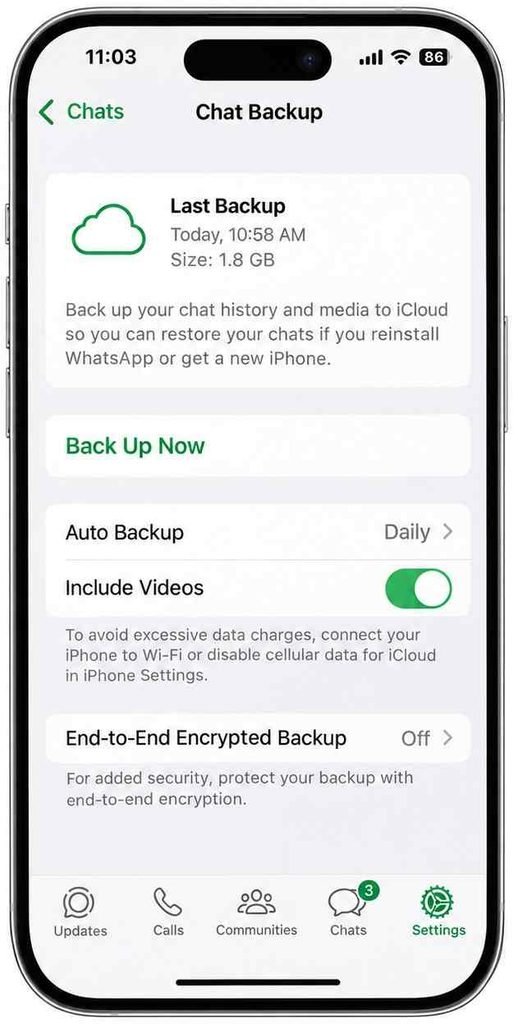
Suggested screenshot caption: Create your first iCloud WhatsApp backup after successfully importing your Android chat history.
What If You Have Already Set Up Your iPhone?
This is one of the most common questions people ask when transferring WhatsApp chats.
If you have already completed your iPhone setup and started using WhatsApp, you cannot directly use the official Android-to-iPhone migration method to merge your old chats with your existing iPhone conversations.
WhatsApp requires the migration to take place before activating WhatsApp on the new iPhone.
What are your options?
Option 1: Factory Reset Your iPhone
If you want to use the official migration method, back up important iPhone data first.
Then erase the iPhone, start the initial setup again, select From Android, and follow the steps in this guide.
Remember that erasing your iPhone deletes its existing data.
Option 2: Keep Your Existing iPhone Data
If you do not want to erase your iPhone, you can keep using it as it is. However, there is no officially supported method through this migration process to merge your old Android WhatsApp history with existing iPhone chats.
Avoid experimenting with unofficial transfer applications on important chat data.
Common WhatsApp Transfer Problems and Their Solutions
Sometimes the WhatsApp transfer process may fail, get stuck, or stop before completion.
Here are some common problems and possible solutions.
1. Move to iOS Transfer Gets Stuck
Possible reasons:
- Unstable connection.
- Too much data to transfer.
- Android switching away from Move to iOS.
- Network optimisation settings interrupting the connection.
Solutions:
- Restart both smartphones.
- Keep both devices connected to power.
- Keep Move to iOS open on Android.
- Turn off mobile data during the transfer if necessary.
- Disable Wi-Fi optimisation features that may interrupt the connection.
- Try the transfer again.
2. WhatsApp Does Not Appear in the Transfer List
Possible reasons:
- Outdated WhatsApp version.
- Unsupported WhatsApp Business account.
- Incompatible device or operating system.
- An incomplete setup process.
Solutions:
- Update WhatsApp on Android.
- Check the Android and iOS version requirements.
- Confirm that you are using regular WhatsApp Messenger rather than WhatsApp Business.
- Restart both devices and try again.
3. WhatsApp Chats Are Missing on the iPhone
Possible reasons:
- The import process was not completed.
- WhatsApp was activated before migration.
- A different phone number was used.
- The migration process was interrupted.
Solutions:
- Confirm that the transfer was completed successfully.
- Check that the same phone number was used.
- Follow the official migration process again if necessary.
- Contact WhatsApp Support if the transfer completed but expected data is missing.
4. WhatsApp Verification Code Is Not Arriving
Solutions:
- Check whether your SIM or eSIM is active.
- Confirm that the phone number is correct.
- Check mobile network connectivity.
- Wait for the available verification timer to finish.
- Use the available alternative verification option if offered.
Do not repeatedly request verification codes in a short period.
5. iPhone Does Not Have Enough Storage
Before starting the migration, check the available storage on your iPhone.
If the Android WhatsApp data is larger than the available iPhone storage, the transfer may not complete successfully.
Remove unnecessary files or applications from the iPhone if needed, and make sure sufficient space is available before trying again.
Important Things to Remember After WhatsApp Transfer
Before resetting or selling your old Android smartphone, remember these precautions:
- Do not delete WhatsApp from your old Android device until you have verified your important conversations on the iPhone.
- Create a fresh iCloud WhatsApp backup after migration.
- Check important photos, videos, documents and voice messages.
- Confirm that your WhatsApp account works properly on the new iPhone.
- Keep your old Android device available until you are confident that everything important has transferred.
Your Android data is not automatically deleted by the migration process. You should only erase your old smartphone after confirming that you no longer need its local data.
Frequently Asked Questions (FAQs)
1. Can I transfer WhatsApp chats from Android to iPhone without losing data?
Yes. You can use Apple’s official Move to iOS application to transfer supported WhatsApp account information, chats and media from Android to iPhone. Follow the official requirements and complete the import before activating WhatsApp on your new iPhone.
2. Is Move to iOS free?
Yes. Apple’s Move to iOS application is available free of charge on Google Play Store.
3. Can I transfer WhatsApp chats from Android to iPhone without a computer?
Yes. You do not need a computer for the official migration process. You need your Android device, a compatible iPhone, the Move to iOS application and a suitable connection.
4. Can I transfer WhatsApp photos and videos from Android to iPhone?
Yes. Supported WhatsApp media, including photos and videos, can be transferred along with your chat history using the official migration process.
5. Can I transfer WhatsApp chats without resetting my iPhone?
No. The official Android-to-iPhone WhatsApp migration process requires a new or factory-reset iPhone. If you have already completed iPhone setup, you need to erase it and start again to use this method.
6. Can I restore my Google Drive WhatsApp backup on an iPhone?
No. An Android Google Drive WhatsApp backup cannot be directly restored through the normal iCloud restore process on an iPhone. Use Move to iOS to migrate your chats between the two platforms.
7. Can I transfer WhatsApp chats using the same SIM card?
Yes. You can use the same phone number on your new iPhone. You may move your physical SIM or activate an eSIM, depending on your network provider and iPhone model. What matters for WhatsApp migration is that you verify the same number.
8. Does WhatsApp transfer include group chats?
Yes. Supported individual chats, group chats and communities are included in the official migration process.
9. Can I transfer WhatsApp Business chats from Android to iPhone?
The official Android-to-iPhone WhatsApp migration feature currently does not support WhatsApp Business. Do not assume that the regular WhatsApp Messenger transfer process will work for a Business account.
10. Will my old Android WhatsApp chats be deleted after transfer?
The migration process does not automatically erase your old Android data. Keep the old device until you have confirmed that the important chats and media are available on your iPhone.
Final Thoughts
Transferring WhatsApp chats from Android to iPhone does not have to be complicated.
With Apple’s official Move to iOS application, you can move your supported WhatsApp conversations, group chats, photos, videos and other media to your new iPhone.
The most important things are to use the same WhatsApp phone number, prepare your iPhone before starting, keep both devices connected, and complete the import process before activating WhatsApp on the new device.
Always verify your important conversations and create a fresh iCloud backup after the transfer.
Found this guide helpful? Share it with someone who is switching from Android to iPhone and wants to keep their WhatsApp chat history safe.